
AD Explorer is an advanced admin tool used to manage and fix Active Directory databases. Yet, its powerful snapshot feature also helps attackers download your entire directory structure to analyse offline. Once the directory is extracted, hackers feed this data into graph tools like BloodHound to map paths to Domain Admin without triggering network alarms.
The Identity Perimeter: Defending Against AD Explorer Abuse
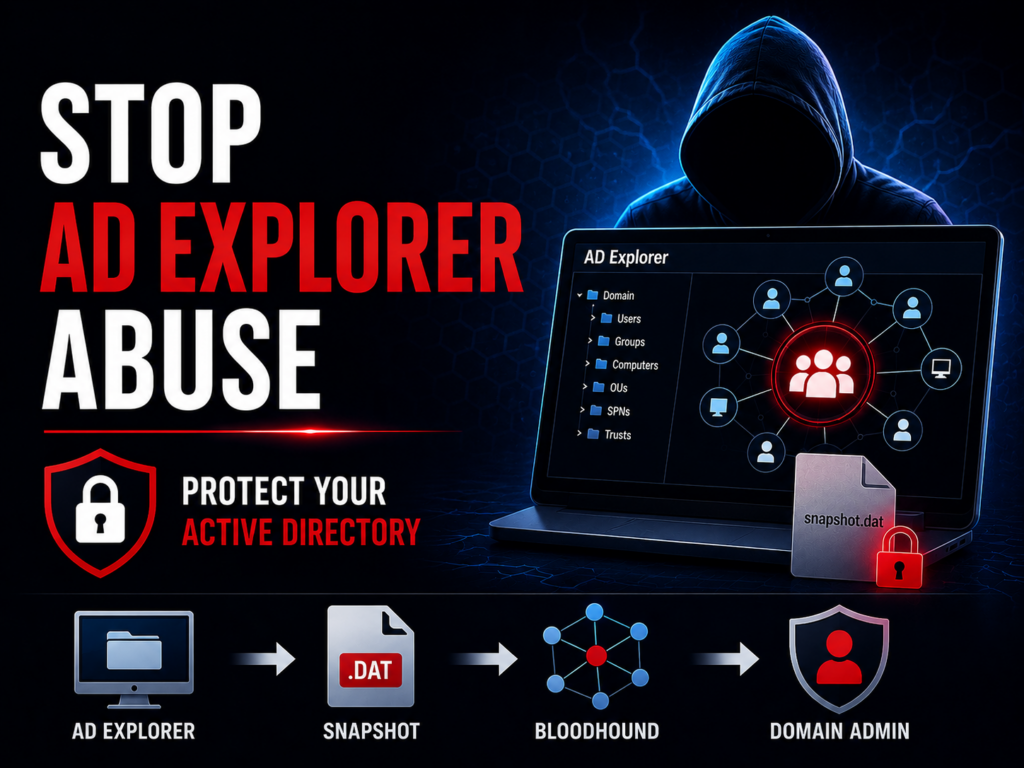
Identity is your primary defensive boundary. Traditional network borders are fading. Because of these changes, your internal directory structure is the ultimate prize for attackers. Within this high-stakes environment, the Sysinternals AD Explorer utility sits in a dangerous, dual-use position.
Microsoft originally built it as an advanced viewer for admin troubleshooting. It lets IT teams rapidly access the directory tree.
But this capability makes it a vital weapon for modern threat actors. If an attacker runs this tool inside your network, they can map your entire infrastructure with almost zero risk of immediate detection.
Defending against such attacks needs more than just watching automated alerts. You need extensive knowledge of how identity systems function and how attackers abuse native protocols.
This is why we provide bespoke, practical training to upskill internal teams. We help defenders understand advanced reconnaissance techniques before an attacker actually uses them.
What We'll Cover
- How system administrators use the tool for normal troubleshooting.
- The mechanics of the snapshot feature and offline directory extraction.
- How attackers pipe extracted data into BloodHound using BOFHound.
- The MDE JSON parsing and registry tweaks needed for detection.
- Why finding subtle Active Directory paths requires manual testing.
The Legitimate Power of AD Explorer
To understand the security risk, you must first know why this tool is so common in large IT setups. It functions as an advanced Lightweight Directory Access Protocol (LDAP) client, giving admins a fluid, expandable tree view of the Active Directory database. This lets them see all of the attributes for any object instantly.
In complex environments, engineers rely on it for critical maintenance. It connects natively over standard LDAP (port 389) or securely via LDAPS (port 636).
When replication fails between different domain controllers, an administrator can capture snapshots of both servers. They can then use the "Compare Snapshot" feature to quickly find the specific objects that failed to sync.
The Threat of the Snapshot
The most dangerous feature of the tool is its snapshot capability. You can trigger it manually or use the command-line -snapshot flag. This creates a point-in-time copy of your entire Active Directory database and saves it to a local .dat file.
The tool pulls data rapidly, but it doesn’t bypass your server rules. Instead, the domain controller enforces an LDAP query limit via the MaxPageSize policy, which defaults to 1000 objects. To get the data, AD Explorer uses LDAP Paged Results controls to poll the directory. It asks for 1000 objects, keeps a cookie, and asks for the next 1000 as fast as possible.
For an attacker, this .dat file is a goldmine. It contains group memberships, Service Principal Names (SPNs), and sensitive metadata.
Worst of all, an attacker can load this file offline. They can spend weeks searching your directory for vulnerabilities without keeping a connection to your server.
Exposing Leaked Credentials
A common myth is that attackers use these snapshots to steal Local Administrator Password Solution (LAPS) passwords. This is largely false.
Both legacy and Windows LAPS protect these password attributes using strict Access Control Lists (ACLs). Unless your domain permissions are broken, a standard user can’t read them from a snapshot.
However, snapshots expose other clear-text data. Attackers routinely find passwords carelessly left in user description fields. They find PINs in comments or service account details stored in clear-text attributes. They just run basic searches against the offline file to harvest these credentials.
Offensive Pipelines in 2026
Modern offensive operations focus almost entirely on stealth. But hackers don’t just read the snapshot manually. They use automated scripts to turn the Active Directory data into a visual map.
BloodHound Community Edition (BHCE) is still the main tool for mapping these attack paths.
Modern antivirus programs regularly block BloodHound's standard data collector (SharpHound). Extracting the directory via a trusted Sysinternals binary is a perfect, stealthy bypass.
If you defend a modern network in 2026, you must understand BloodHound's new architecture. It recently shifted to a REST API-driven architecture. The new API strictly enforces a modern JSON schema (v5).
Because older scripts like ADExplorerSnapshot.py struggle to output this new schema cleanly, attackers adapted. They now pipe the AD Explorer snapshot through a bridge tool called BOFHound. They run it in BOFHound output mode to map the LDAP data into the format the BloodHound REST API accepts.
Defensive Telemetry and Hardening
Standard antivirus usually ignores this tool because it is a trusted Microsoft file. To stop it, you must watch your LDAP network traffic closely and configure your logging correctly.
Threat Hunting with MDE
In Microsoft Defender for Endpoint (MDE), you shouldn't look for result counts. MDE logs the LDAP request, not the response, so there is no "result count" field.
Instead, query the DeviceEvents table for ActionType == 'LdapSearch' originating from non-standard binaries or unexpected users. You need to look for a high volume of these events taking place in a very short timeframe.
MDE also logs the query parameters inside a JSON column called AdditionalFields. Analysts must parse this JSON column and look inside the SearchFilter field for overly broad queries that pull the entire directory.
The Event ID 1644 Trap
Many generic guides tell you to "monitor Event ID 1644" on your domain controllers to catch bulk sweeps. They tell you to set this registry path to a diagnostic level of 5:
HKEY_LOCAL_MACHINE\SYSTEM\CurrentControlSet\Services\NTDS\Diagnostics\15 Field Engineering
This is correct but incomplete. Windows has a default Search Time Threshold (msecs) of 30,000 milliseconds (30 seconds). Because AD Explorer uses fast, paged queries, its requests finish in fractions of a second.
If you only change the Field Engineering key, you’ll get zero logs. To actually catch this tool, you must also lower the Search Time Threshold or Inefficient Search Results Threshold registry keys so the rapid queries trigger the log.
Why Precision Requires Expertise
To secure your business adequately, you must eliminate logic flaws before an intruder maps them.
This requires rigorous manual analysis. When we conduct an internal penetration test, we investigate your Active Directory like a real threat actor would.
Our certified experts manually chain misconfigurations together. We look at how a harmless read permission on one object can combine with an exposed SPN on another to create a direct path to Domain Admin.
We hold top industry credentials (OSCP, CISSP, GXPN) to ensure we assess your internal infrastructure with absolute precision.
Secure Your Identity Perimeter
Stop guessing if your Active Directory is secure. Get a comprehensive manual security audit led by certified experts to uncover your hidden attack paths before attackers do.
Book Your Expert Security Audit
Frequently Asked Questions About AD Explorer
Are AD Explorer snapshots encrypted when saved to disk?
No. By default, the .dat file created by AD Explorer is not encrypted or password-protected. It is a raw, proprietary copy of the directory data. If an attacker gets hold of this file, they have a permanent, readable map of your internal security.
This is why you must treat these files as "Tier 0" assets and ensure they’re never stored on unencrypted drives or in shared folders with broad access.
Does a directory snapshot contain LAPS passwords?
No, not by default. LAPS passwords are protected by strict Access Control Lists (ACLs). An attacker can’t read them from a snapshot unless they’ve already elevated their privileges or your domain is misconfigured.
Can a standard user take a snapshot, or does it require admin rights?
Any authenticated user can connect to the active directory and read most objects by default. So, a standard user can use AD Explorer to take a snapshot of everything they’ve "read" access to. This usually includes the entire list of users, groups, and computer objects.
While they can't see sensitive attributes like LAPS passwords (unless misconfigured), they can still map out your entire attack surface without needing advanced privileges.
Does AD Explorer trigger the same alerts as SharpHound?
Not necessarily. Many security tools look for the specific "noise" of SharpHound, which uses many different API calls to find sessions and local admins.
AD Explorer uses standard LDAP paged results. In the logs, this can look like a normal (though very fast) admin query. This "Living off the Land" approach is why it’s so often used by attackers to bypass basic detection rules that are only tuned for BloodHound’s native collectors.
Can I prevent AD Explorer from running on workstations?
You can’t easily block the LDAP queries themselves without breaking legitimate apps, but you can block the binary.
We recommend using AppLocker or Windows Defender Application Control (WDAC) to prevent unauthorised binaries, like ADExplorer64.exe, from executing on standard workstations. Only letting these tools run on Secure Admin Workstations (SAWs) is the best way to keep your directory map secure.
Can I stop attackers by turning on MFA for LDAP?
Native Active Directory LDAP does not support inline Multi-Factor Authentication. You can’t prompt a user for a token during a raw LDAP bind. You must use a third-party Identity Threat Detection and Response (ITDR) overlay to do this.
How do I detect an attacker taking a snapshot?
Hunt in your MDE DeviceEvents table for high-volume LdapSearch events. Parse the AdditionalFields JSON column for broad filters. You can also configure your domain controllers to log Event ID 1644, but you must lower the Search Time Threshold registry key first.